Controls within reach.
Switch workspaces, change mode, resize or exit from a small floating control. Drag it to any edge. It remembers its place and fades when you’re working.

Save your Mac apps as workspaces and bring them back with a click. On VITURE Beast, create one, two or three desktops and drag their dividers to make room for your work.
macOS 13+ · Apple silicon & Intel
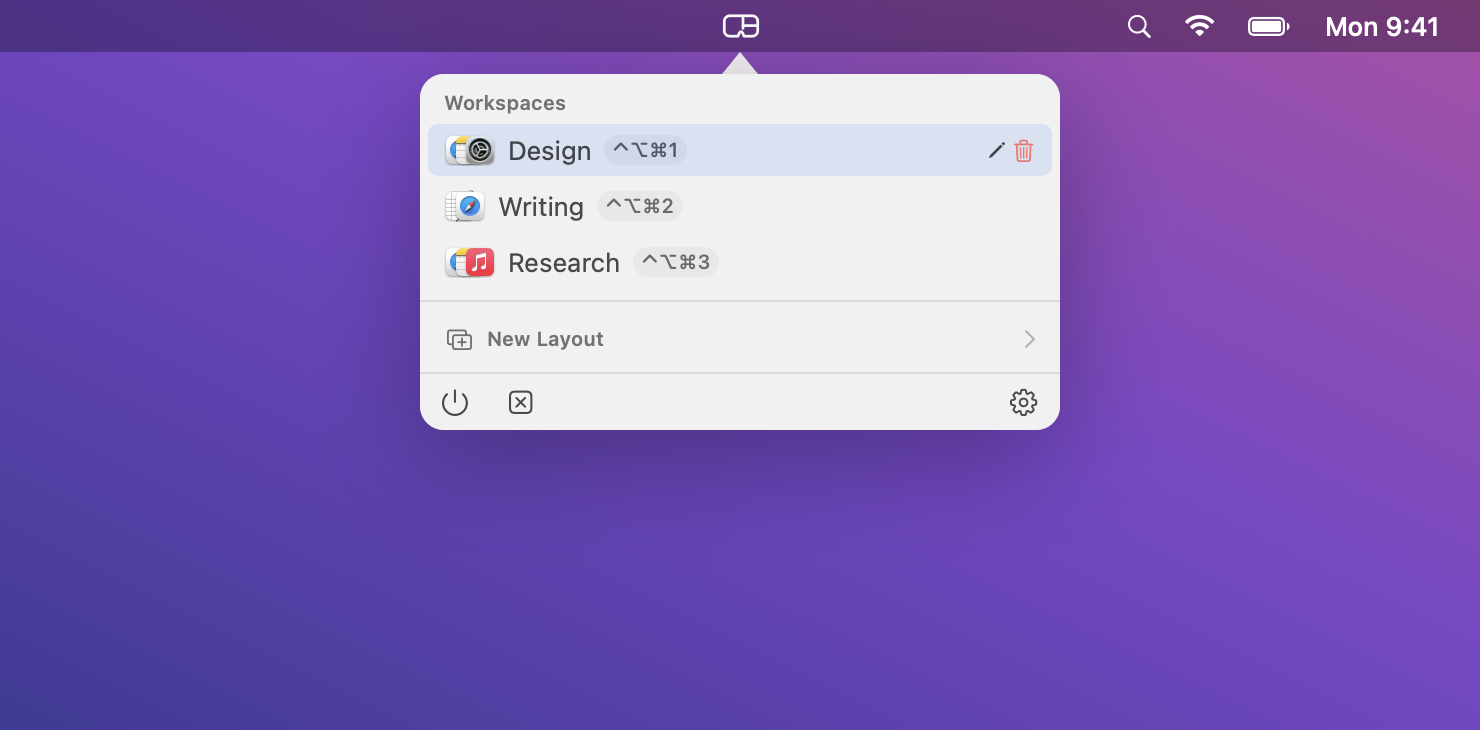
Choose the apps you use together, arrange their windows, and save. Apply that workspace later to launch those apps and put their windows back into the saved positions.
Room to write, with references and your schedule close by.
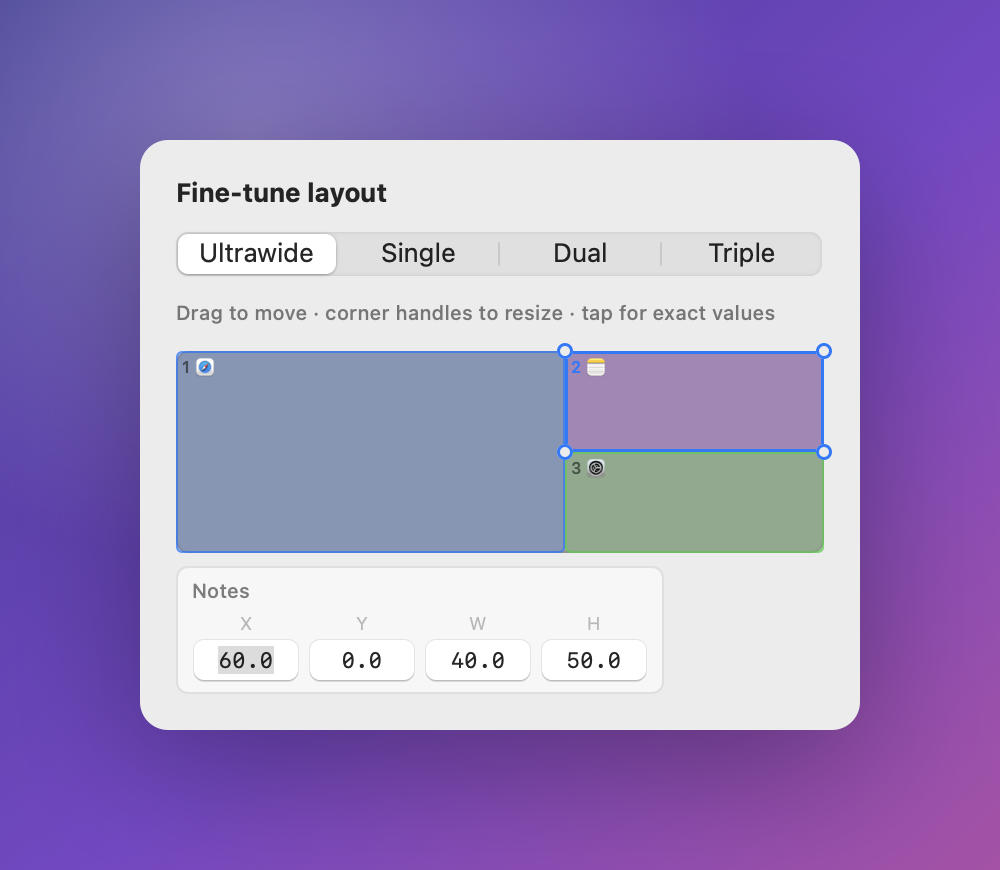
Group the windows you work in and save their layout. Each workspace can use your Mac desktop, enter its own Seere screen setup, or keep the current mode. Fill each desktop, choose macOS full screen, or fine-tune a custom layout. Recall it from the menu bar, floating controls or a shortcut.
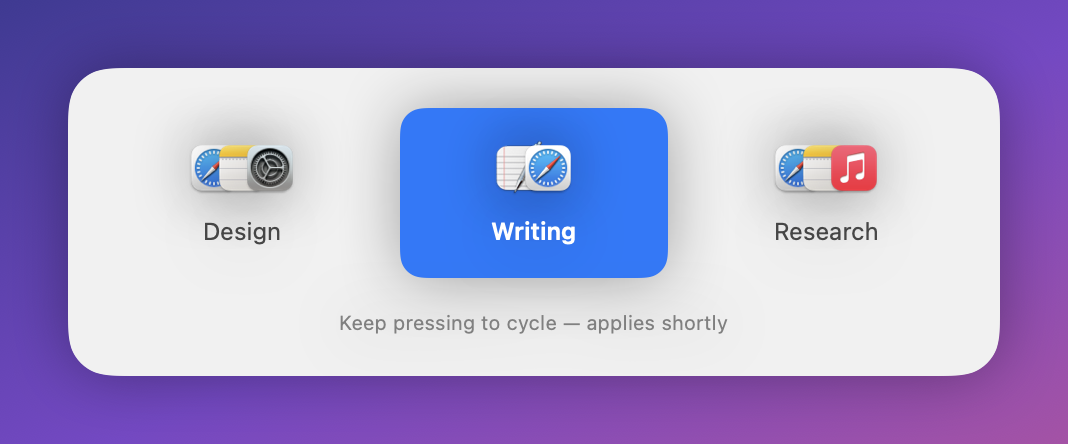
Tap a hotkey to cycle workspaces. A clean switcher shows what's coming and applies the moment you stop. Like ⌘-Tab, but for your entire layout.
A focused set of tools that get out of your way.
Big-left, split, columns, grid. Pick a preset or fine-tune to the pixel.
Your favourite setups, one click or one hotkey away.
A different fine-tuned layout for each Beast display mode.
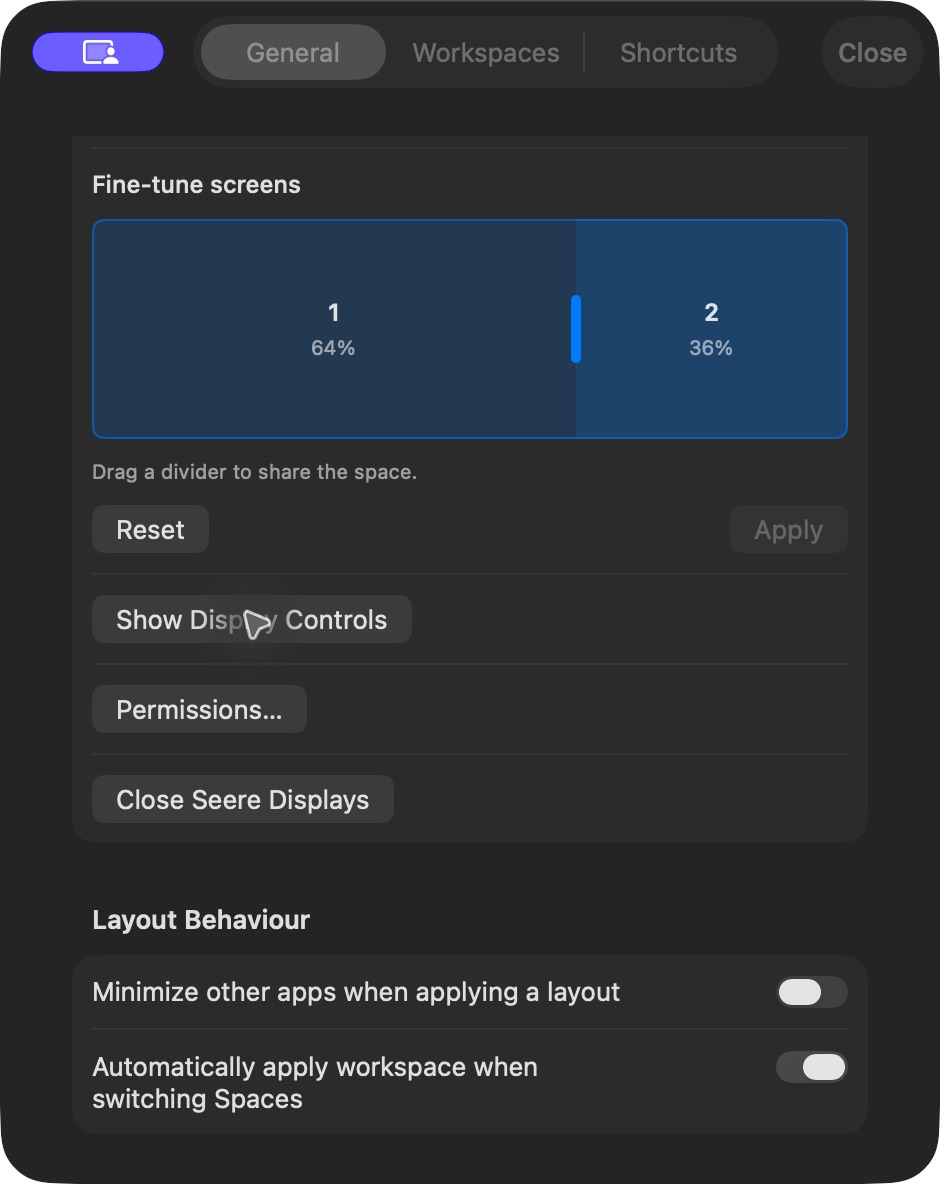
Single, Dual or Triple desktops. Drag a divider to give one screen more room, without leaving gaps.
Swap a window with its neighbour, press again to swap back.
Quit your apps together, with their normal save prompts. Start Seere when you log in.
Seere creates its own desktops on VITURE Beast. Choose one, two or three, then make the space your own.
Drag the divider between desktops right in your view, or adjust the split in Settings. More room for your main task, less for the reference beside it. The entire view stays usable, and Seere remembers your split for each mode.
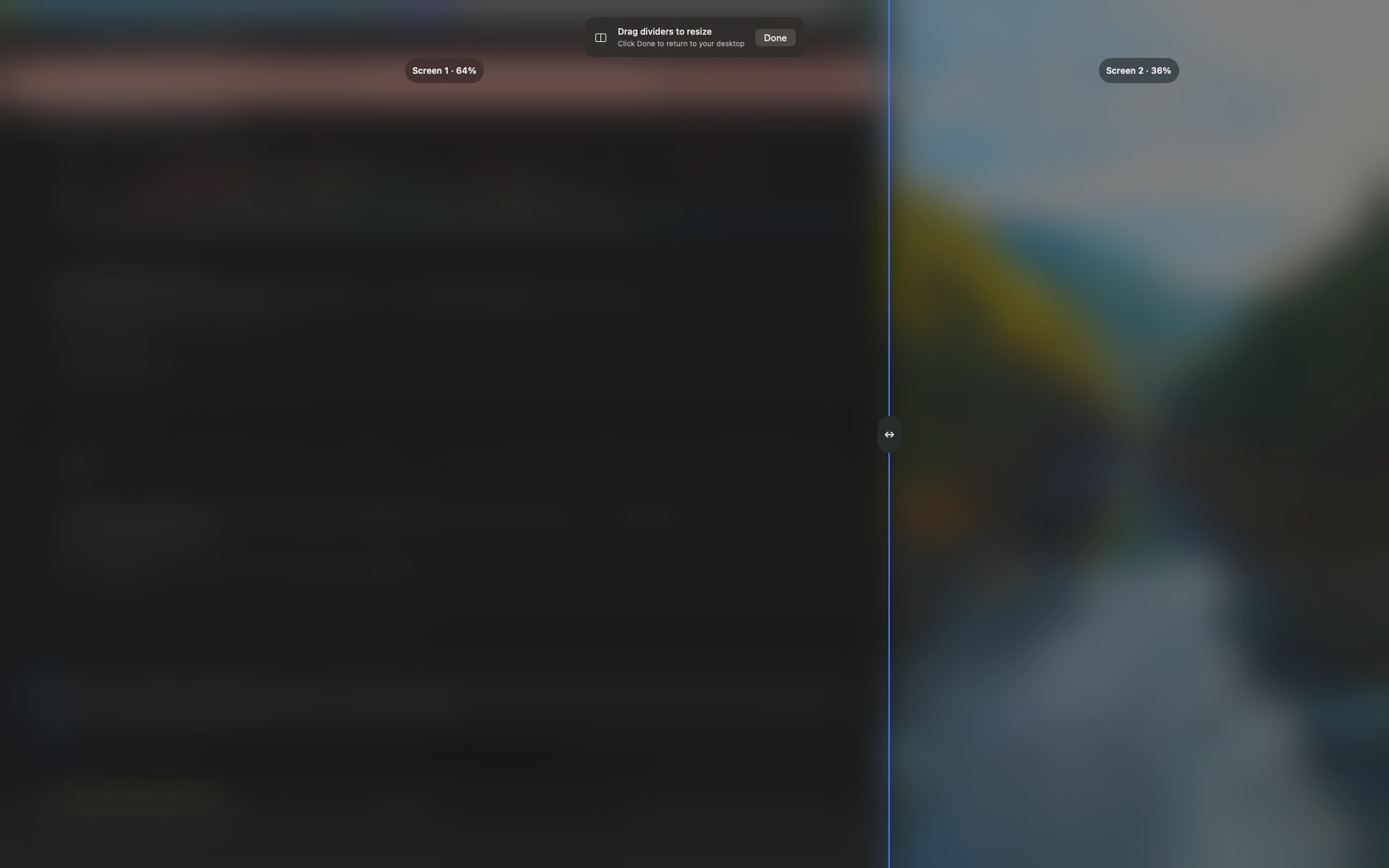
Switch workspaces, change mode, resize or exit from a small floating control. Drag it to any edge. It remembers its place and fades when you’re working.
Switch the Beast into Ultrawide directly from Seere. When you close Seere’s displays or quit, it restores the previous hardware display mode.
Direct Ultrawide switching requires the Beast’s native mode.
Unplug your glasses and keep working on your Mac. Reconnect to resume the interrupted display mode. Your saved screen proportions adapt to the available view.
Free for the basics. One payment unlocks everything. No subscription.
Secure checkout by Stripe. Your key arrives by email, instantly.
Lost your key?
Start with two free workspaces. Seere guides you through window access and the permissions needed for its Beast desktops.
Works on macOS 13 and later · Apple silicon & Intel
No. Seere is a full window manager on any Mac. The VITURE Beast controls simply appear when your glasses are connected, and stay hidden otherwise.
Seere is built and tuned for the VITURE Beast family. Support for more XR devices may follow based on demand.
No. Seere creates and renders its own Single, Dual and Triple desktops on VITURE Beast. Direct Ultrawide switching uses the Beast’s native mode. Seere does not provide head tracking or reproduce every SpaceWalker feature.
Accessibility lets Seere arrange your windows. Screen Recording lets it render its own virtual desktops onto the Beast. Seere checks these permissions before starting its displays; it captures only the desktops it creates.
Open Seere Settings and click Check Now under Updates. For troubleshooting, choose Send Diagnostics to Seere Support, confirm, then click Copy Reference. Include that reference in your email to support@seere.app.
No. Seere Pro is a one-time purchase, yours forever, with free updates within the current version.
Seere is signed with a Developer ID, but this release is not notarized by Apple. macOS may require you to allow the app in Privacy & Security.
Try to open Seere and click Done on the warning. Then open System Settings ▸ Privacy & Security, scroll down until you see Seere mentioned, and click Open Anyway.
If your Mac is a few years old and there's no Open Anyway button, right-click Seere in your Applications folder and choose Open instead.
Your license key is emailed the moment you pay, and it's also shown on screen right after checkout. Paste it into Seere ▸ Settings ▸ Seere Pro and hit Activate.
Lost it? Have it re-sent here.
One key activates one Mac. Moving to a new machine is fine: deactivate in Seere ▸ Settings ▸ Seere Pro on the old Mac and the seat frees up immediately.
Yes. A 14-day, no-questions-asked refund. Email refunds@seere.app and we'll refund it through Stripe.
This release is Developer ID signed but not Apple notarized. macOS may ask you to allow it in Privacy & Security.
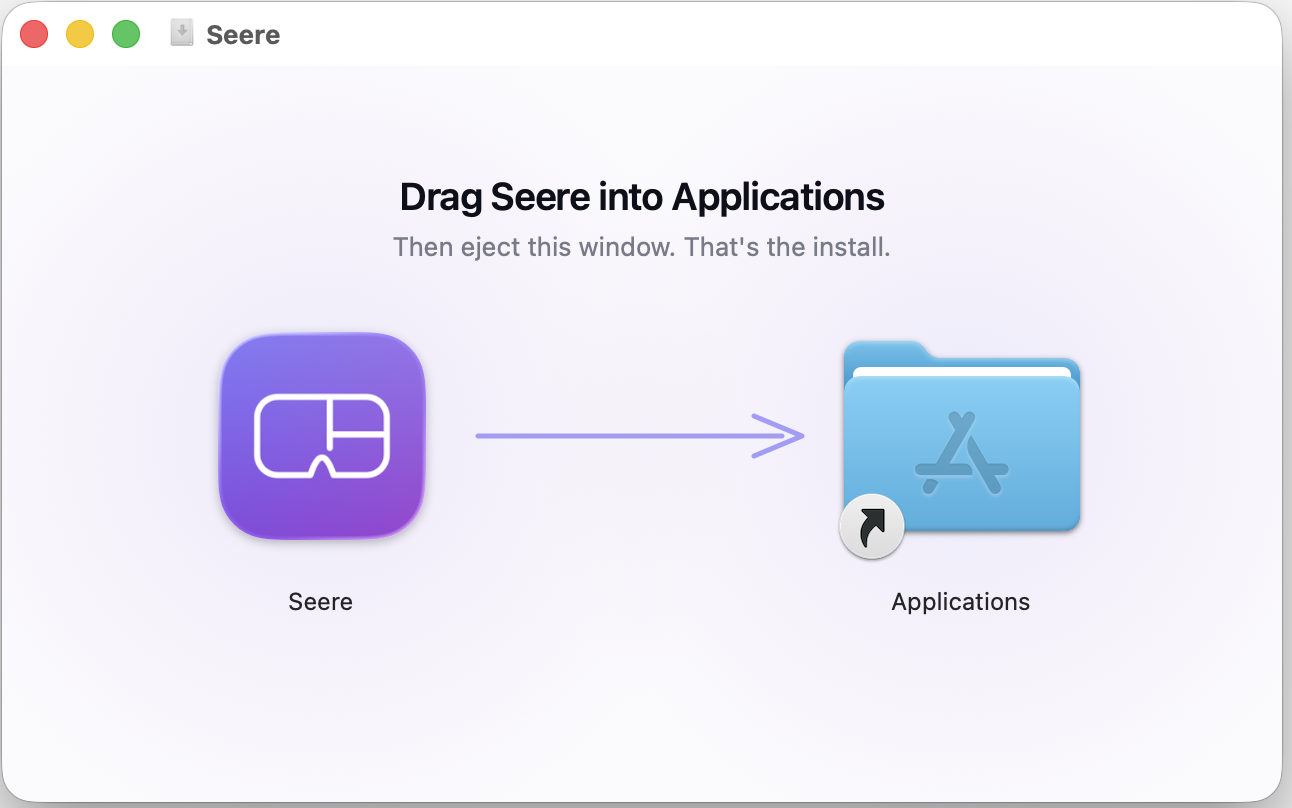
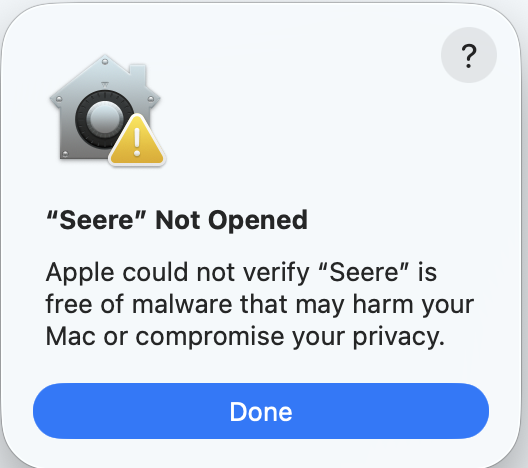
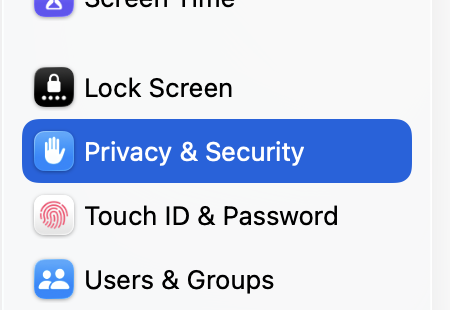
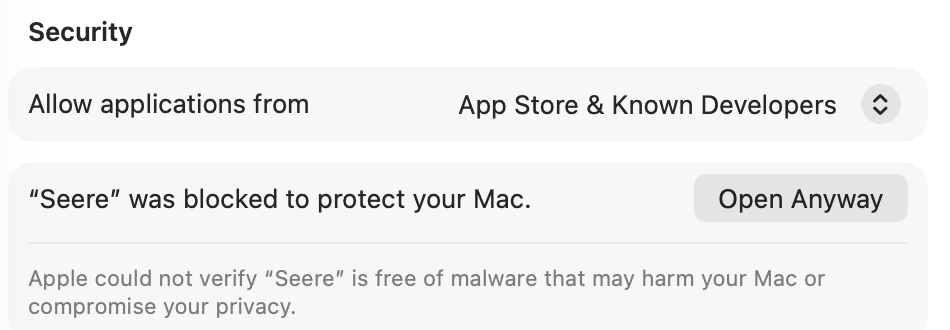
Older Mac with no Open Anyway button? Right-click Seere and choose Open.